 GSTIntel
User Guide
How to use every tool on GST Intelligence — what to upload, which button to click, and what you get back. Screenshots mark the exact control each step refers to.
Overview
Every tool here follows the same shape: give it files, it gives you back one Excel workbook. What differs is what you upload and how files get matched to a period. Use the index on the right (or the grid below) to jump straight to a tool.
Scan a Folder
The fastest way to supply files: point at a folder once, and every matching file for a GSTIN is found automatically. It's the same control on Consolidators, Scrutiny, and À-la-carte Checks — sitting next to Pick files as a Scan a folder tab.
- Switch to the Scan a folder tab wherever you see it.
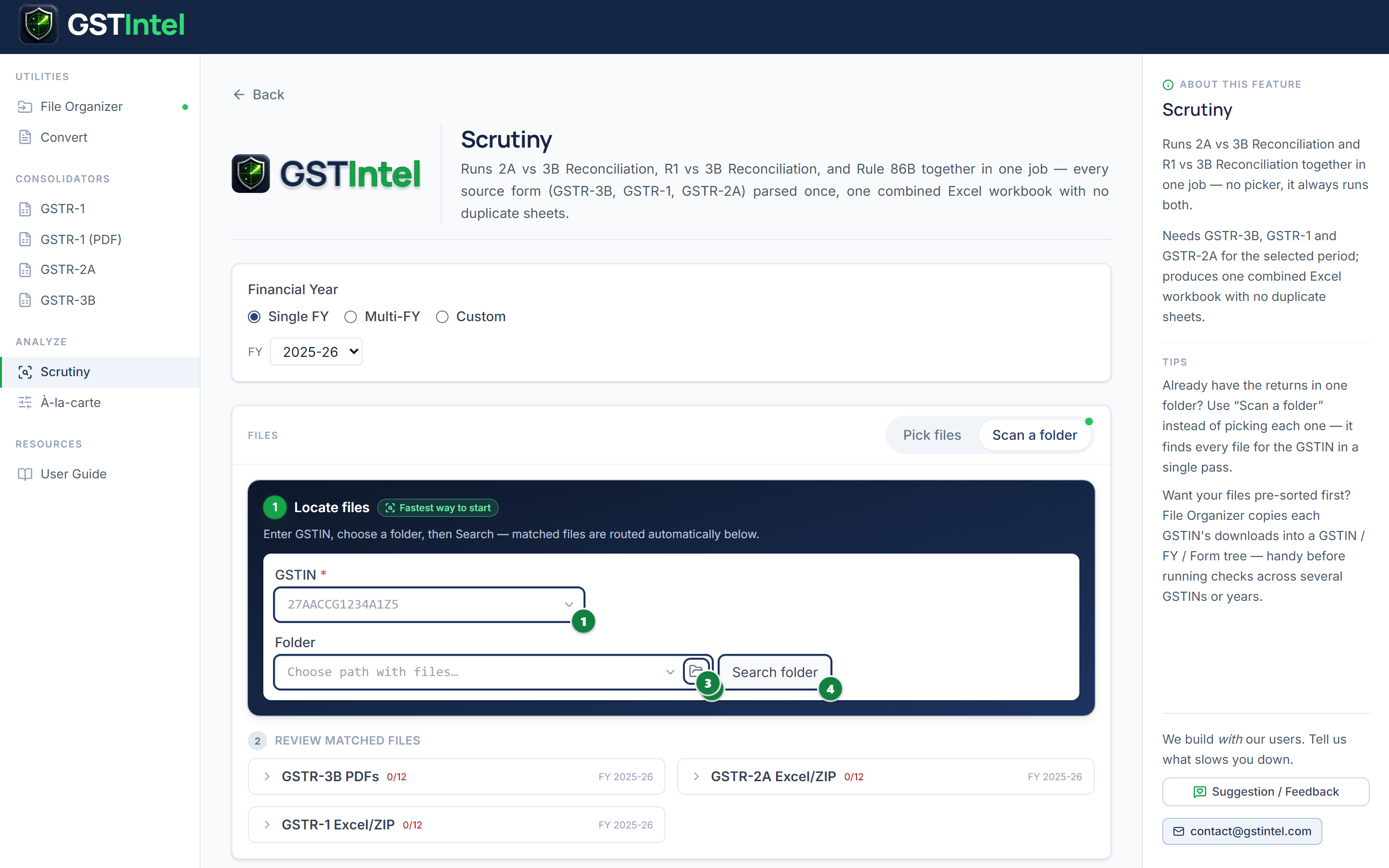
- Enter the GSTIN 1 to scan for.
- Start typing in the folder field 2 to pick a recently used folder from the dropdown, or click the folder icon 3 to browse for a new one.
- Click Search folder 4 — every file inside (including subfolders) is scanned, and the ones matching the GSTIN (and, where a page filters by file type, the right extension) are pulled into the page below automatically.
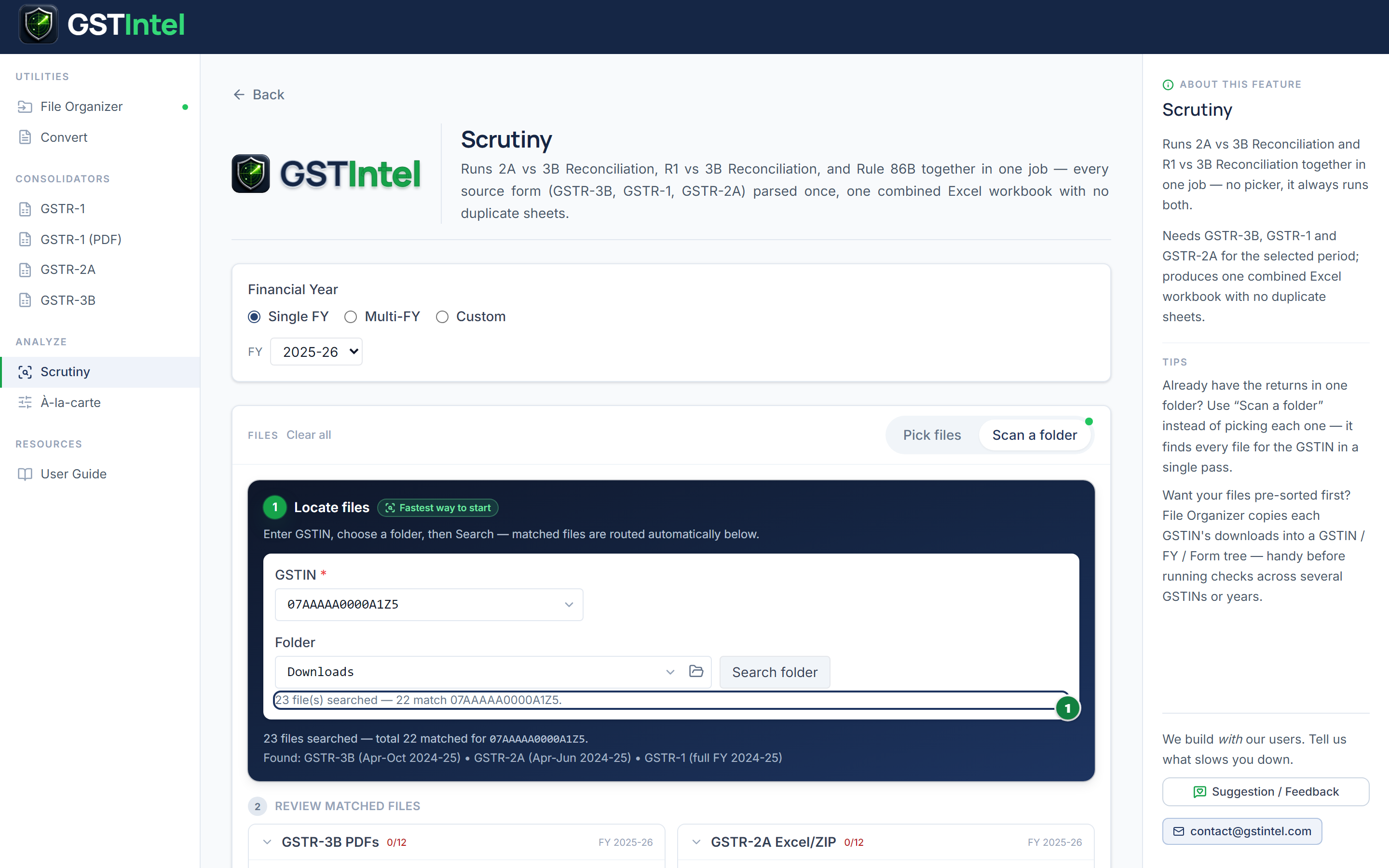
- Check the summary line under the folder field — it shows how many files matched out of how many were searched.
Once Search folder finishes
File Organizer
Sorts a messy downloads folder into a clean GSTIN / Financial Year / Form structure — a good first step before using any other tool below. Runs entirely on your device; nothing is uploaded.
- Open File Organizer from the sidebar (Utilities).
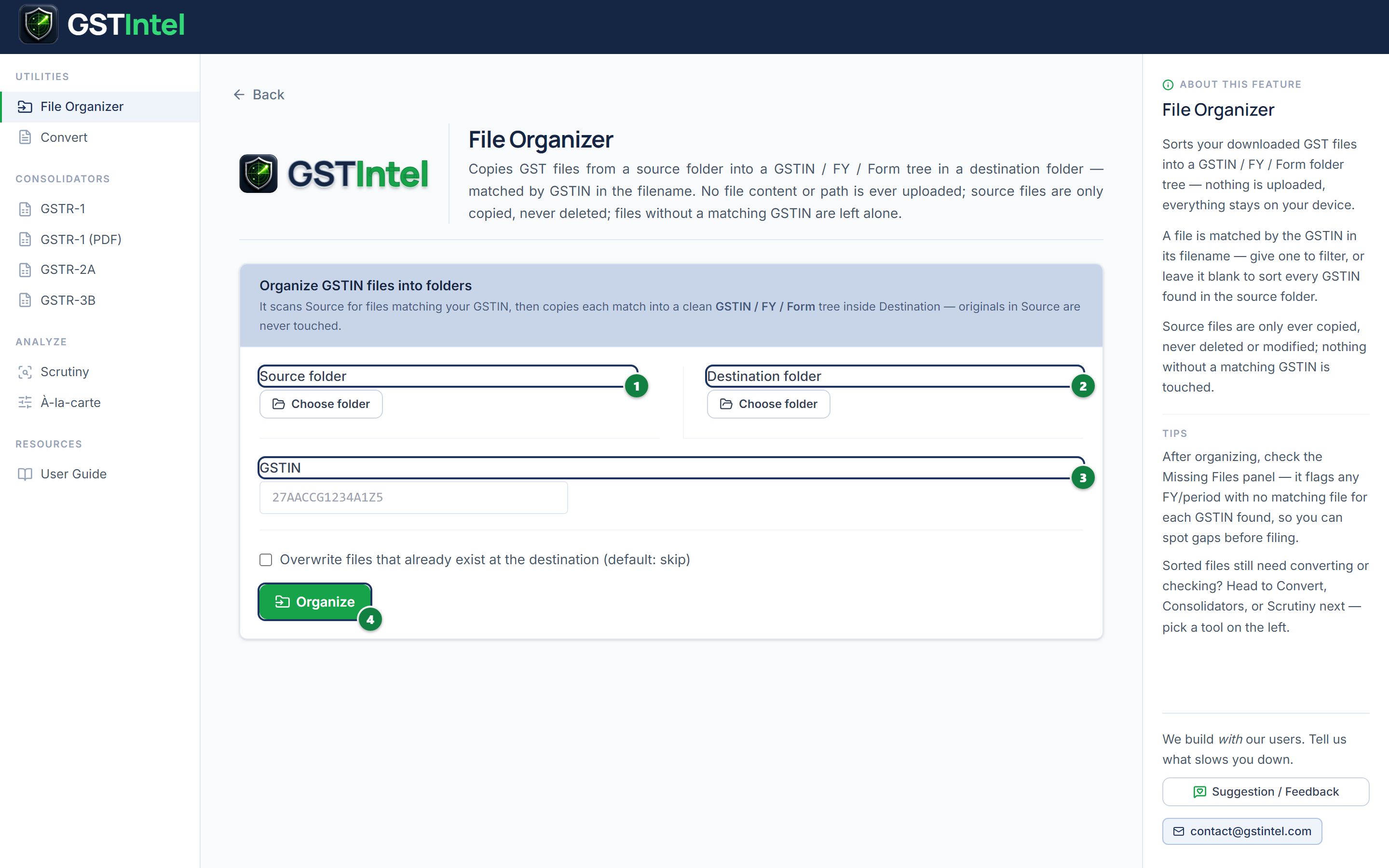
- Choose the Source folder 1 — where your downloaded files currently are.
- Choose the Destination folder 2 — where sorted copies should be placed.
- Enter the GSTIN 3 to sort for.
- Click Organize 4.
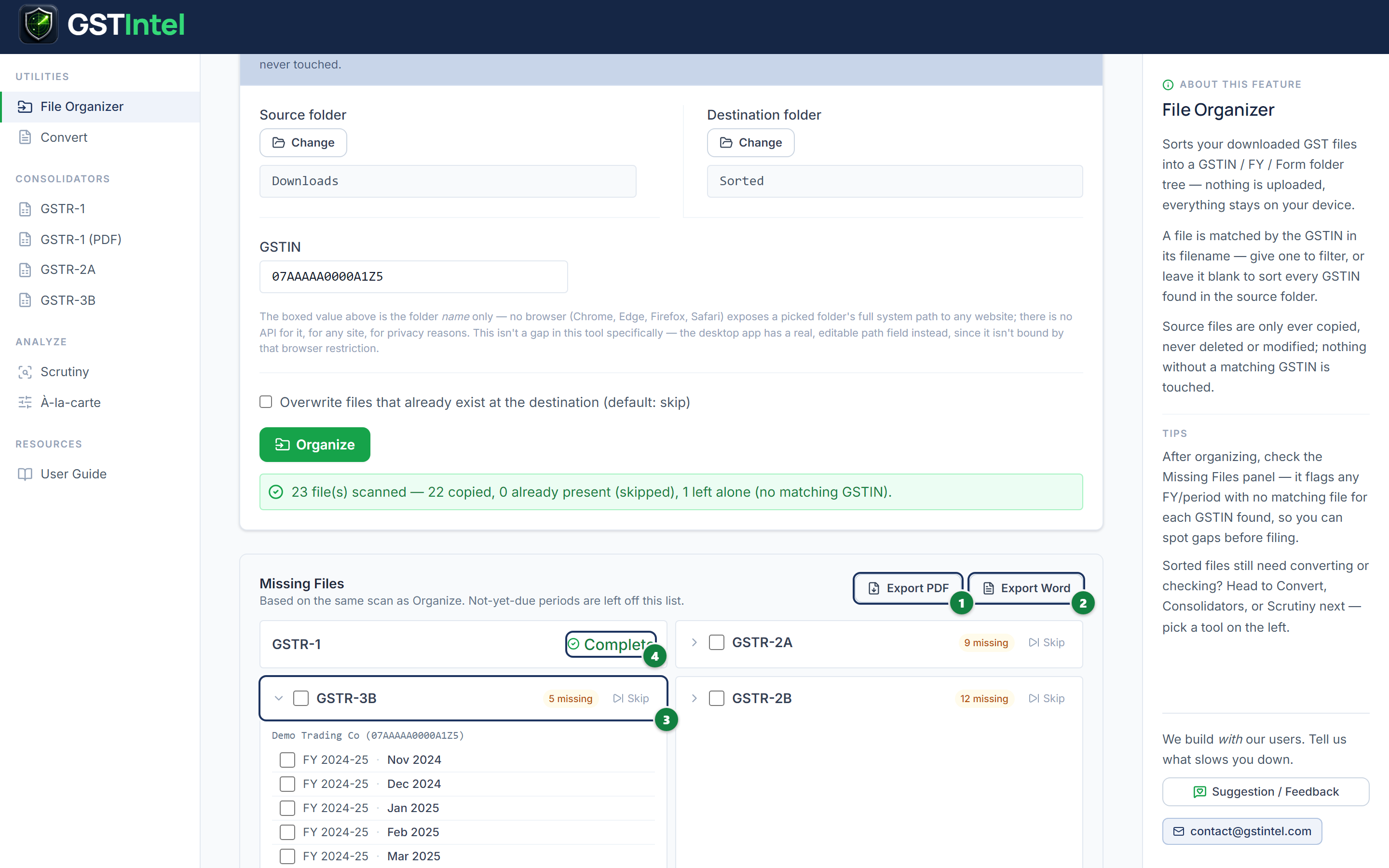
- Check the Missing Files panel that appears — it flags any FY/form combination with no matching file, grouped by form and expandable down to the exact missing month.
- Tick the items you want on record, then Export PDF or Export Word for a shareable checklist.
After Organize finishes
Convert
Turns a single GST return PDF into Excel. Use this when a return only exists as a PDF and you don't need to cross-check it against anything else.
- Open Convert from the sidebar.
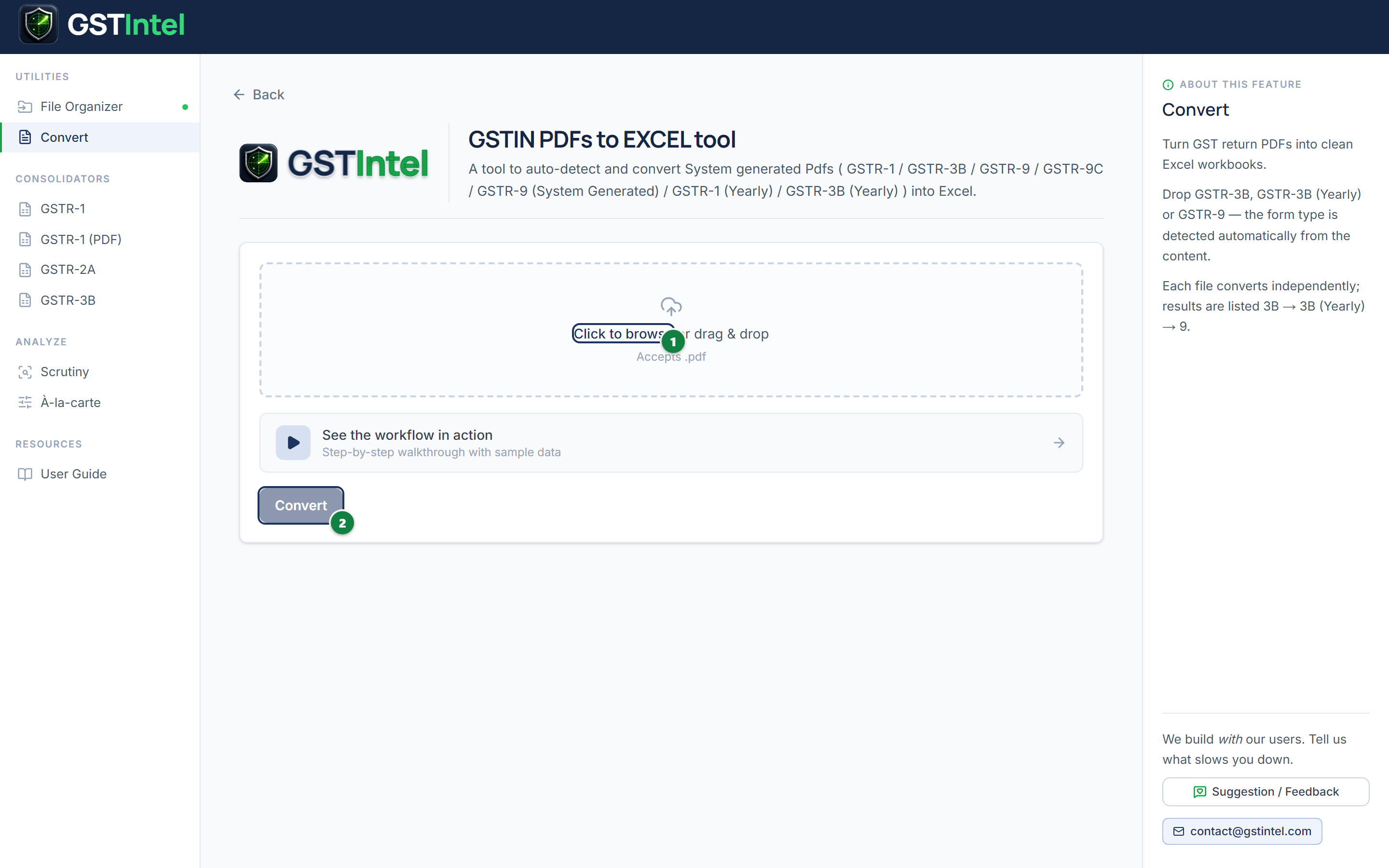
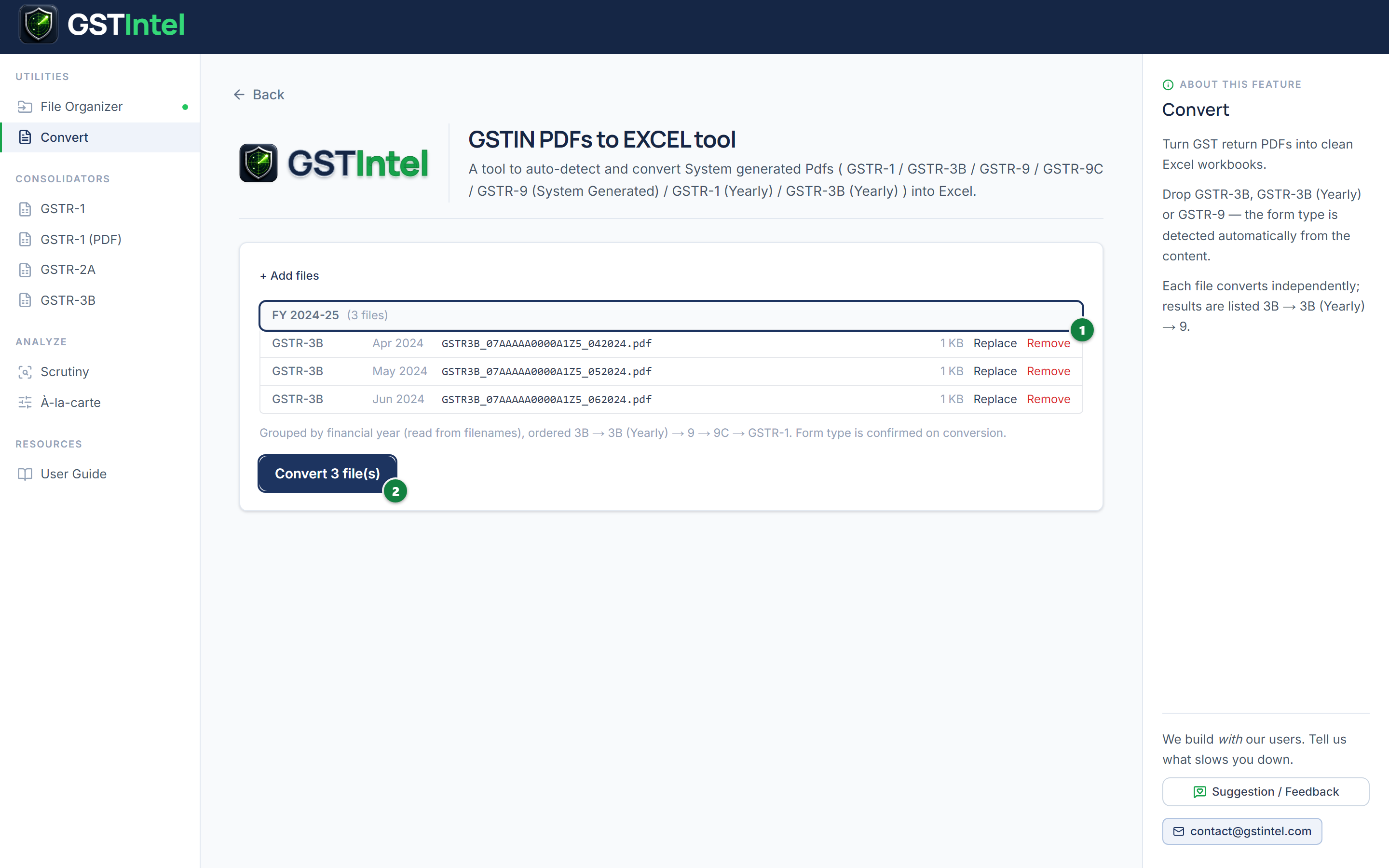
- Drop your PDF file(s) onto the upload area, or click it to browse 1 — GSTR-3B, GSTR-3B Summary, GSTR-9, GSTR-9C and GSTR-1 Summary (and their yearly variants) are all auto-detected; you can mix types in one batch.
- Click Convert 2.
- Once processing finishes, download each file as Excel, or all of them as one ZIP.
Once files are added
Consolidators
Merges a financial year's worth of monthly files — or several years at once — into one combined workbook.
- Open Consolidators from the sidebar and pick the form (GSTR-1, GSTR-1 (PDF), GSTR-2A, or GSTR-3B).
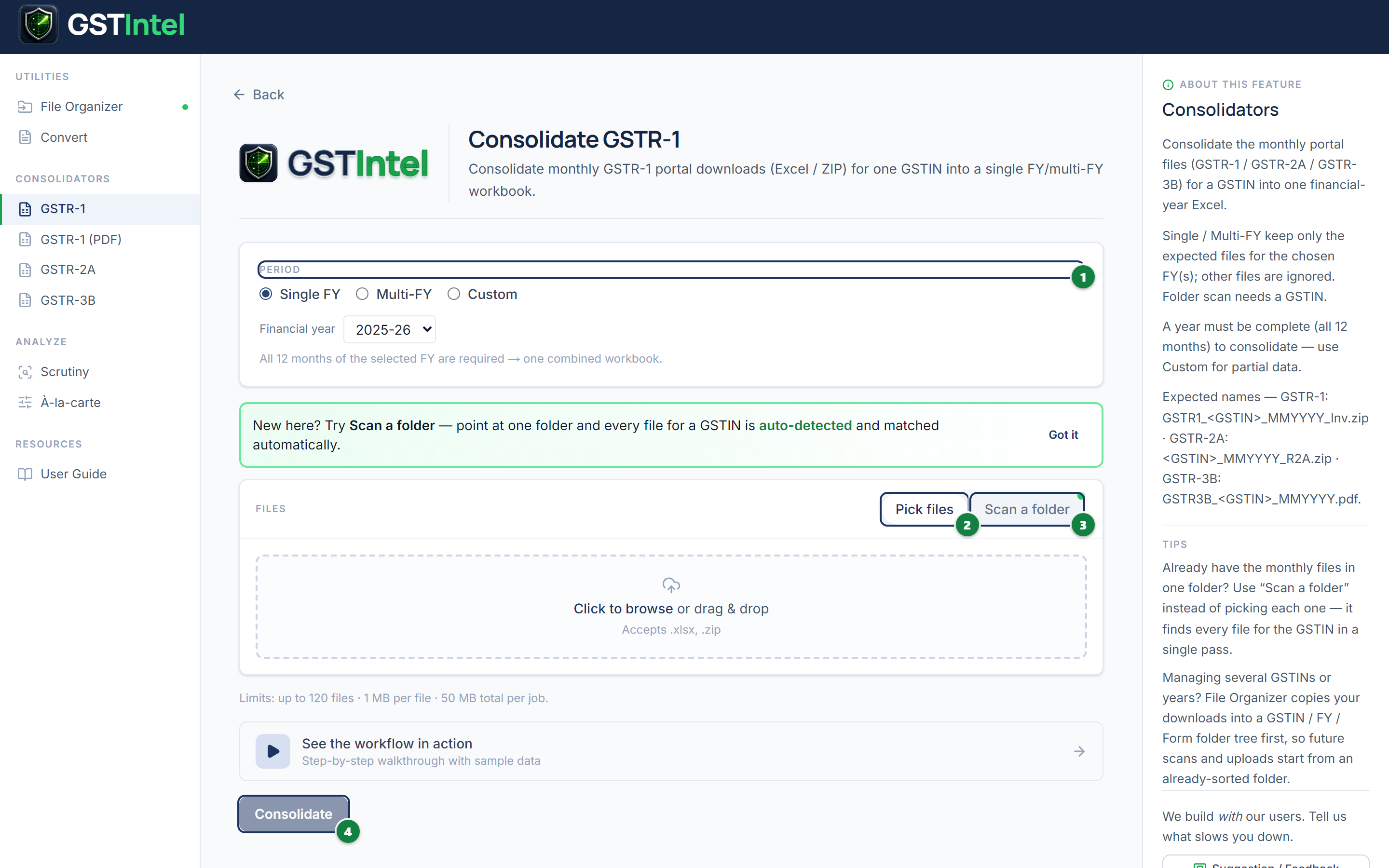
- Choose a period 1 — Single FY, Multi-FY (a range of years), or Custom (any months, no completeness check).
- Provide files: Pick files 2 to choose them one at a time, or Scan a folder 3 to auto-match every file for a GSTIN in one pass.
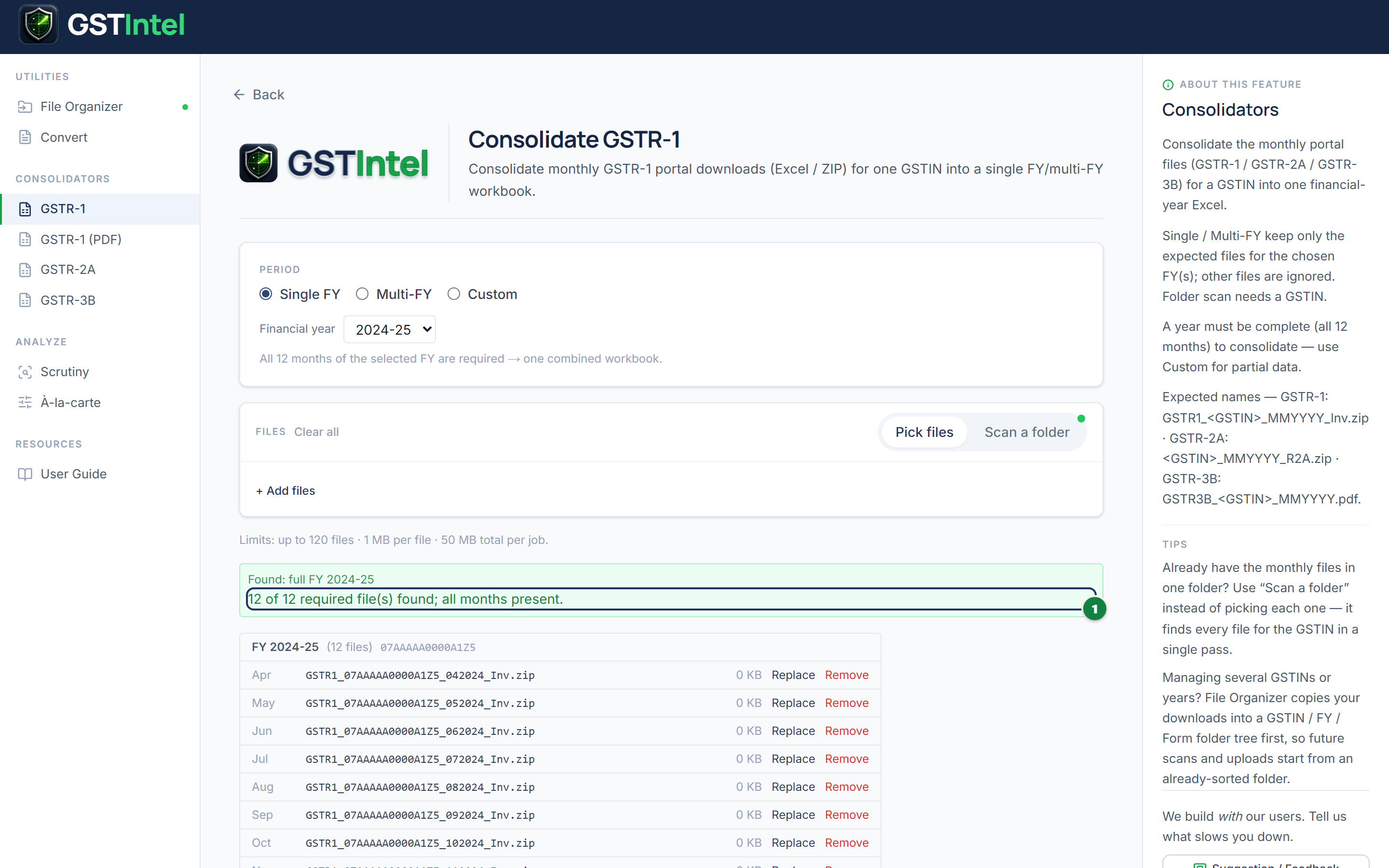
- Check the on-screen summary — missing months are flagged in red.
- Click Consolidate 4 once every required month is present (or, in Custom mode, once at least one file is provided).
- Download the combined Excel once processing finishes.
Once every month is matched
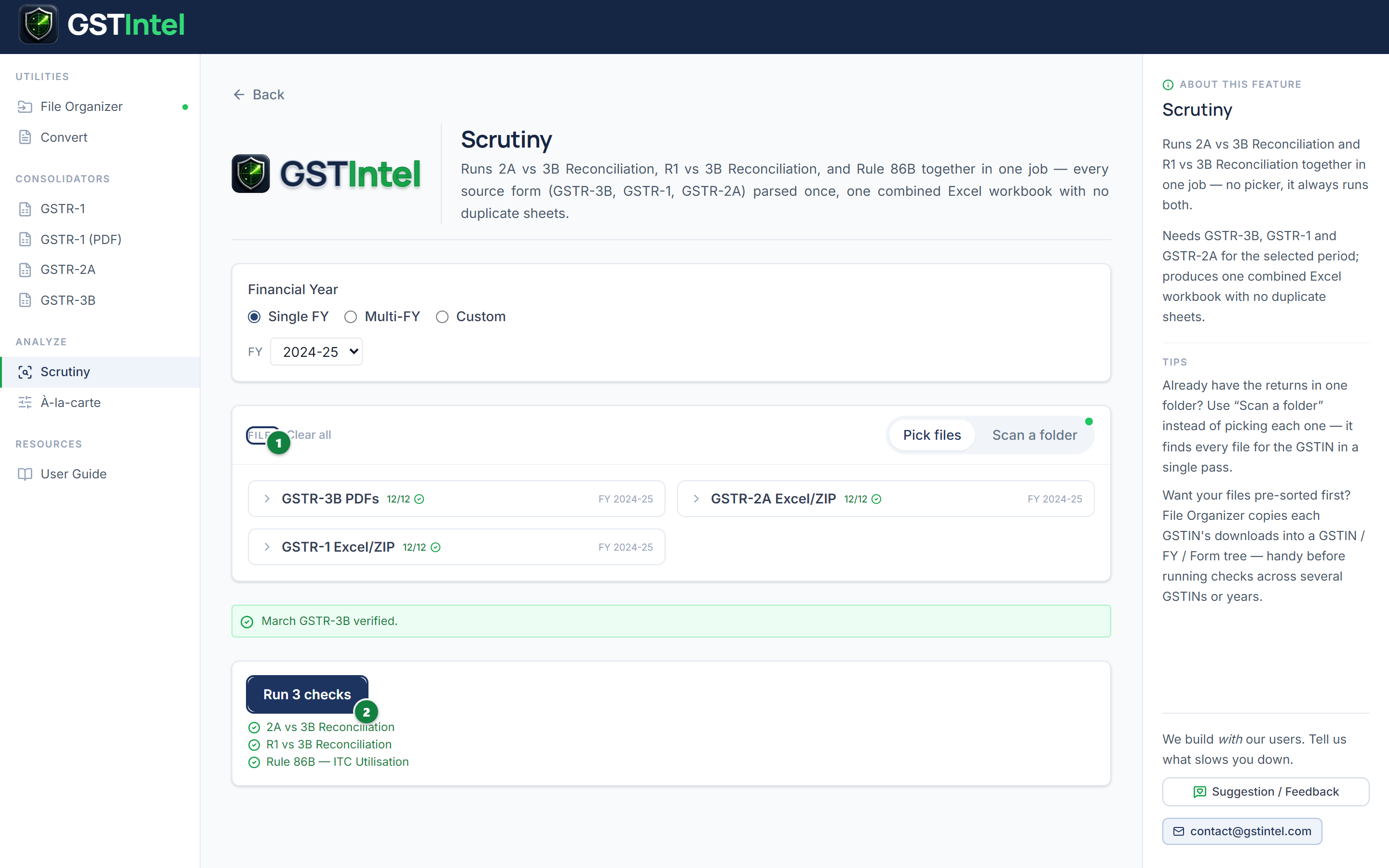
Scrutiny
Runs a fixed bundle of three standard reconciliations together, in one pass — no picker required.
- Open Scrutiny from the sidebar.
- Choose a period 1.
- Supply GSTR-3B, GSTR-1 and GSTR-2A under Files 2 — pick files directly or scan a folder.
- Click Run 3 checks 3 once every required file is present for the selected period.
- Download the combined Excel once processing finishes.
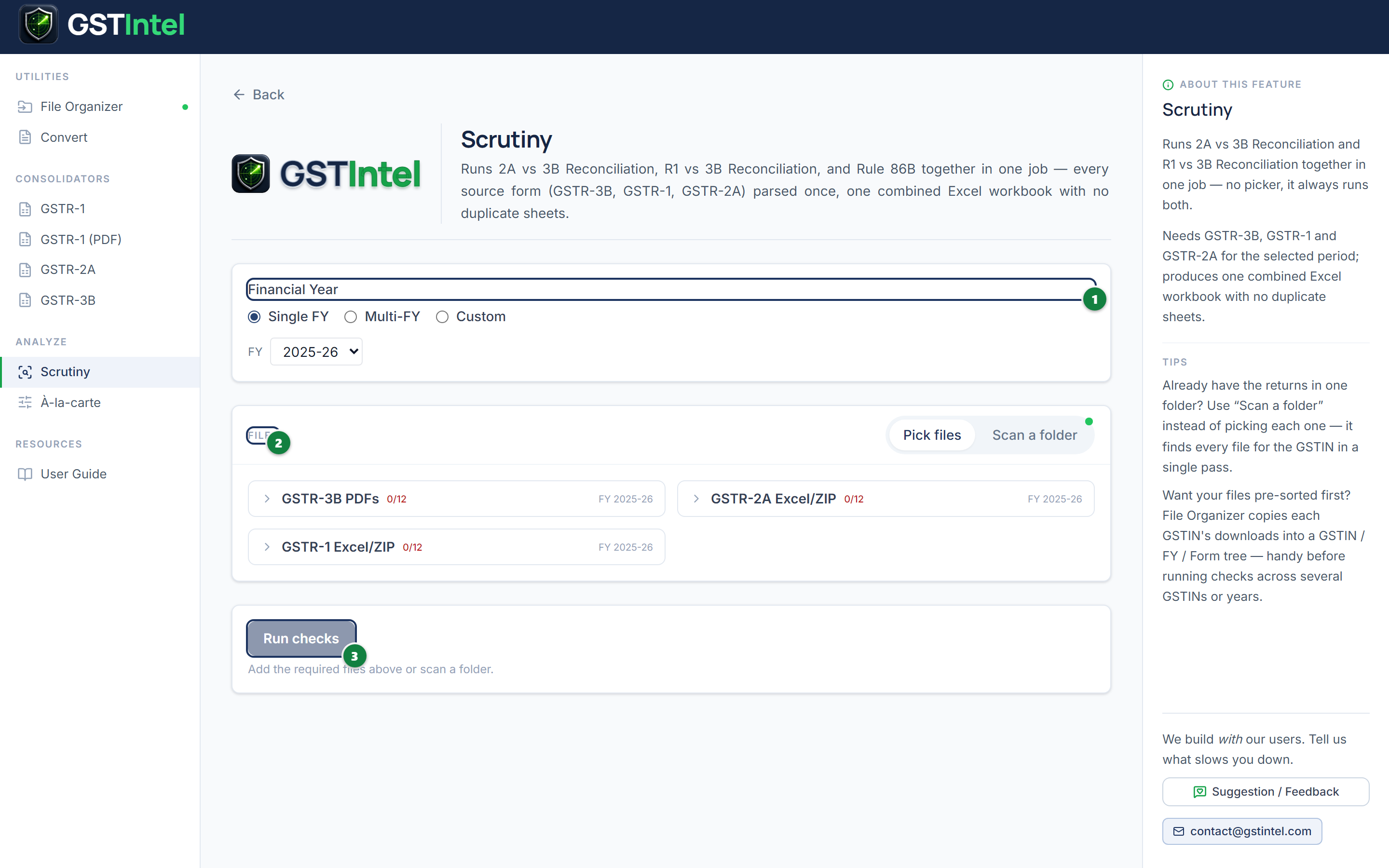
Once every file type is complete
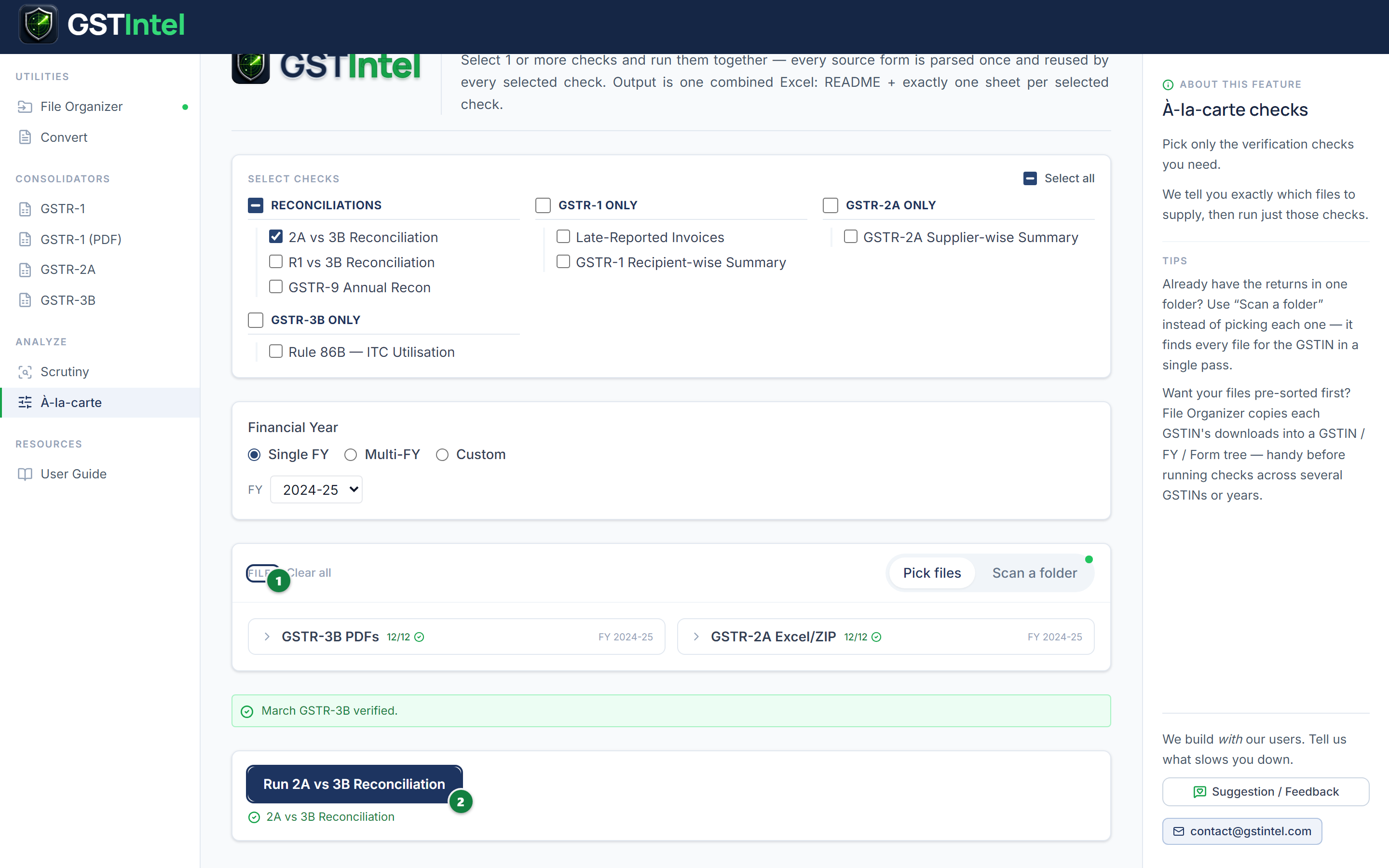
À-la-carte Checks
Pick any one or more of seven available checks and run exactly that combination in a single pass.
- Open À-la-carte from the sidebar.
- Tick the checks you want under Select checks 1 — grouped by which return family each one needs.
- Choose a period 2.
- Supply whatever files your selected checks need under Files 3 — pick files directly or scan a folder.
- Click Run 4 — the button is labelled with how many checks will actually run.
- Download the combined Excel once processing finishes.
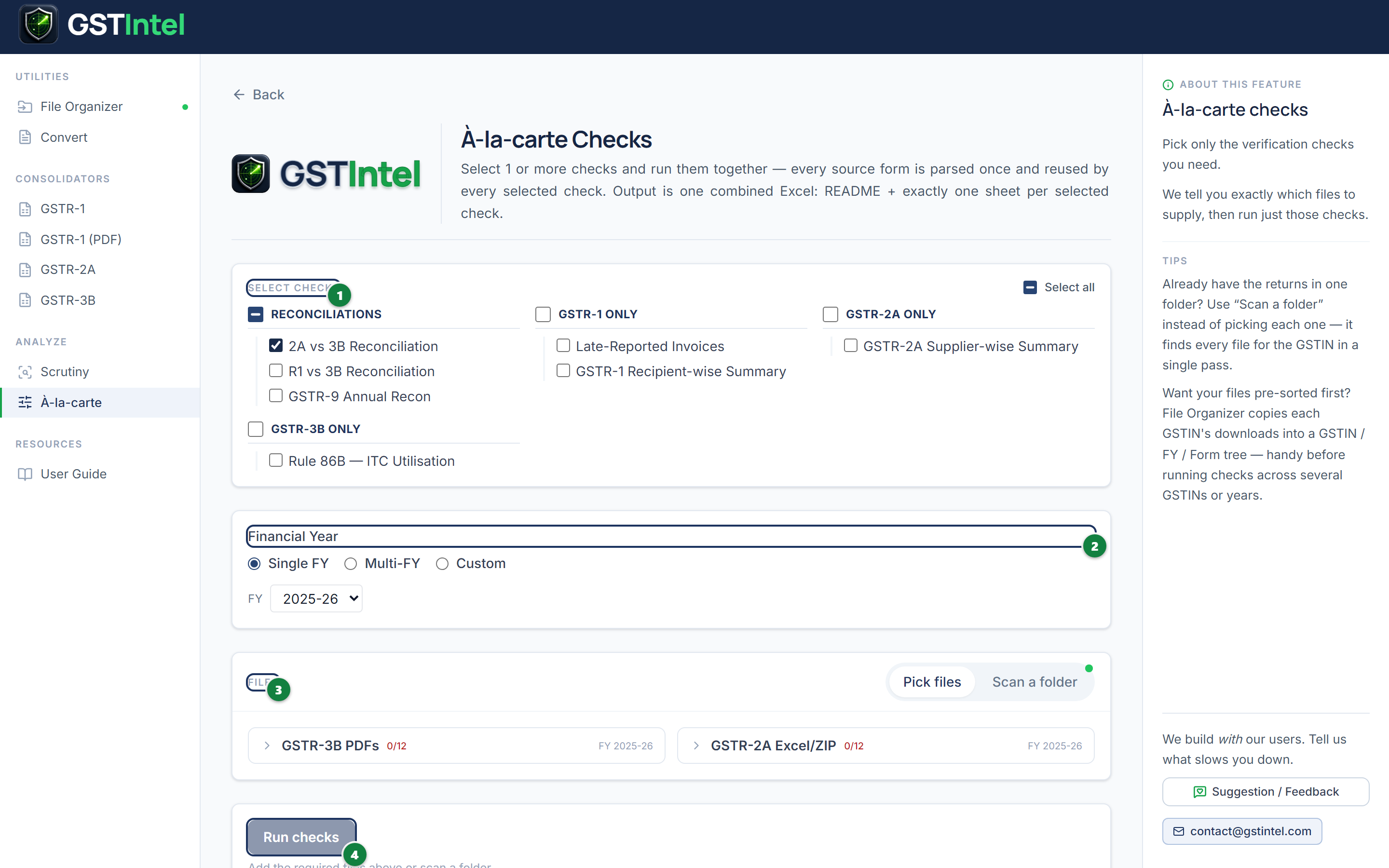
Once the selected checks’ files are complete
Which documents do I need?
Every check on the platform needs one or two of four source documents. This table shows exactly which, and where each check lives.
| Check | GSTR-3B | GSTR-1 | GSTR-2A | GSTR-9 | Available from |
|---|---|---|---|---|---|
| Rule 86B — ITC Utilisation | ✓ | — | — | — | Scrutiny · À-la-carte |
| 2A vs 3B | ✓ | — | ✓ | — | Scrutiny · À-la-carte |
| R1 vs 3B | ✓ | ✓ | — | — | Scrutiny · À-la-carte |
| GSTR-9 vs GSTR-3B | ✓ | — | — | ✓ | À-la-carte only |
| Late-Reported Invoices | — | ✓ | — | — | À-la-carte only |
| GSTR-1 Recipient-wise Summary | — | ✓ | — | — | À-la-carte only |
| GSTR-2A Supplier-wise Summary | — | — | ✓ | — | À-la-carte only |
- GSTR-3B only → just Rule 86B, the sole check with no second document.
- + GSTR-1 → adds R1 vs 3B, Late-Reported Invoices, and Recipient-wise Summary.
- + GSTR-2A → adds 2A vs 3B and Supplier-wise Summary.
- + GSTR-9 → adds GSTR-9 vs GSTR-3B.
- All four → every check is available; Scrutiny runs its fixed three automatically, À-la-carte lets you run any subset, including all of them, in one job.
Glossary
| GSTIN | The 15-character number that uniquely identifies a registered taxpayer. |
| Financial Year (FY) | The 12-month GST accounting period, 1 April – 31 March. FY 2024-25 = 1 Apr 2024 – 31 Mar 2025. |
| GSTR-3B | Monthly summary return: total outward supply, tax payable, and ITC claimed. |
| GSTR-1 | Monthly invoice-level outward-supply (sales) return. |
| GSTR-2A | System-generated statement of inward supplies (purchases), auto-populated from your suppliers' returns. |
| GSTR-9 | Annual return consolidating a full financial year's GSTR-1 and GSTR-3B activity. |
| ITC | Input Tax Credit — credit for GST already paid on purchases, offset against GST payable on sales. |
Frequently Asked Questions
Every document a selected check (or Consolidate) needs must be present for the selected period. Check the readiness indicator next to each item — if you have the files but they don't form a complete year, switch to Custom.
A folder scan matches by GSTIN and file extension only, not by financial year — files for a different year than the one you selected are excluded automatically before anything runs.
Uploaded files and finished jobs aren't kept once you've downloaded the result — if you didn't download it in time, you'll need to run it again.
À-la-carte Checks. Scrutiny only offers its fixed bundle of three.
Yes — every tool that has a period selector supports Multi-FY (a chosen range) and Custom (any months) alongside Single FY. The output is always one combined workbook.